

Salesforce Winter ’25 has introduced one of the most user-requested enhancements for Lightning record pages — Dynamic Highlights Panel. If you’ve ever wished for more control over the Highlights Panel without switching over to Setup, this update is a game-changer. It brings greater flexibility, visibility rules, and a more responsive design, all within the comfort of the Lightning App Builder.
💡 What Has Changed?
Previously, admins could only configure fields in the Highlights Panel using Compact Layouts in Setup. While functional, it offered limited flexibility and wasn’t ideal when you wanted different field visibility per profile or dynamic conditions.
With Winter ’25, Salesforce brings the new Dynamic Highlights Panel, which can be easily dragged onto your Lightning record page just like any other component. And yes — you can now configure up to 12 fields directly on the page!
✨ Why Dynamic Highlights Panel is a Big Win for Admins
Here are the major benefits that make this feature stand out:
✔ More Responsive UI
No more awkward truncation or cut-off field values. The new panel automatically adjusts and wraps content based on screen size.
✔ Visibility Rules Support
Just like Dynamic Forms, you can show or hide fields within the panel using visibility rules, making the experience more contextual for users.
✔ Configure Directly in Lightning App Builder
No need to jump to Object Manager → Compact Layouts. Everything happens right inside the Lightning App Builder canvas.
✔ Dynamic Actions by Default
You can control which actions appear in the panel using dynamic actions, making it even more customizable.
✔ Works for All LWC-Enabled Objects
If an object supports Lightning Web Components on record pages, it supports the Dynamic Highlights Panel.
🛠 How to Use the Dynamic Highlights Panel
- Open Lightning App Builder and edit your desired Record Page.
- On the Fields tab, drag the Dynamic Highlights Panel onto the canvas.
- Add or remove fields (up to 12).
- The Primary Field comes pre-selected — but you can change it.
- Apply visibility rules if needed.
- Customize actions that appear inside the panel.
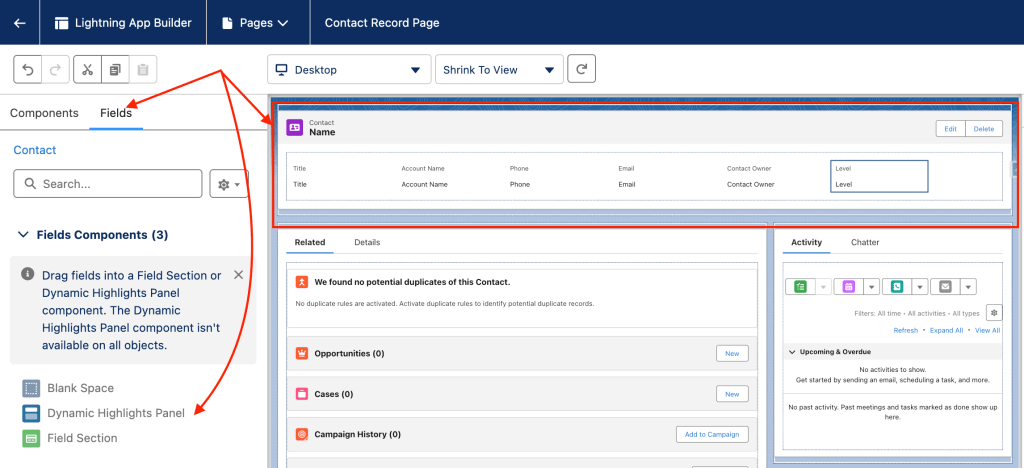
Because the component is completely responsive, the field values automatically wrap when the browser is resized, improving the overall user experience across devices.
📱 What About Mobile?
For desktop users, the panel appears immediately.
For mobile users, you must enable it explicitly:
Setup → Salesforce Mobile App → Dynamic Forms and Dynamic Highlights Panel on Mobile
Once enabled, users will experience the same modern, flexible highlights view even on the Salesforce mobile app.
🔚 Final Thoughts
The new Dynamic Highlights Panel is part of Salesforce’s broader push toward more admin-friendly, low-code customization tools. It reduces dependency on Compact Layouts, offers dynamic visibility, and gives admins more control directly within the Lightning App Builder.
If you’re already leveraging Dynamic Forms, this enhancement will feel very natural and powerful.
 JPs Blog