
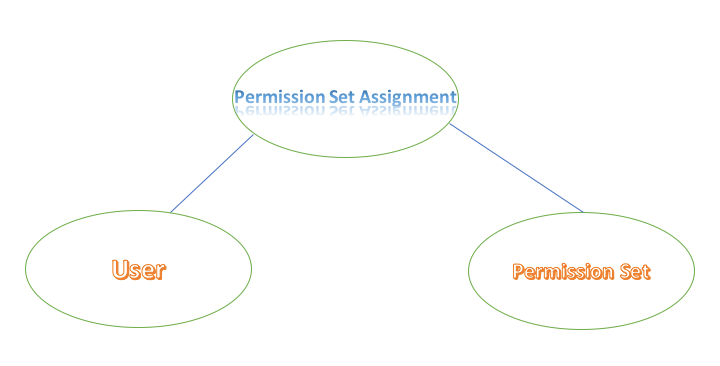
When it comes to permission set, creating and configuring the same as per business need is quite easy. But believe me when it comes to assigning the permission set to production users, uff it’s so hectic. Normally we have options like;
- Open each user and assign the permission set to them.
- Else go to your permission set and then click on add assignment.
But if the user list is quite long and all users doesn’t fit into single permission set assignment list view, then it’s going to be your worst day of the release. And next time when someone asks for a new permission set then you will be looking at his/her face with an exclamation mark on your face.
But no worries we have the magic tool of salesforce, named as ‘Data Loader’. You must be thinking how a Data Loader is going to help in assigning permission set to user!!!
The logic as below.
When you assign a permission set, you create a ‘Permission Set Assignment’ record.
If user ‘John’ has three permission set assigned then there will be three ‘Permission Set Assignment’ records. So it’s all about creating records and Data Loader is the champ in this area.
In Permission Set Assignment object there are two fields you need to consider while assigning the PS using Data Loader.
- AssigneeId (Id of user, to which you want to assign the permission set)
- PermissionSetId (The id of permission set, which you want to assign)
Suppose you have created a permission set “ChangeOwnerPermission”
And you want to assign the above permission set to bellow users:
- John Doe
- Jane Doe
So, your 1st task will to get the Ids of both Permission set and Users.
Suppose the Ids are as below (look at the URL after opening the user or permission set and you will find the corresponding Ids):
- ChangeOwnerPermission: 0PS009909090901
- John Doe: 005895623109009
- Jane Doe: 005895623109010
Then prepare a CSV file with below details.
| AssigneeId | PermissionSetId |
| 005895623109009 | 0PS009909090901 |
| 005895623109010 | 0PS009909090901 |
If you want to assign multiple permission set to single user then you need to add multiple rows in the same CSV.
Suppose there are another permission set named “RunReportPermission” with Id “0PS001809090402” and you want to assign it to user “Jane Doe”, then the CSV will look like;
| AssigneeId | PermissionSetId |
| 005895623109009 | 0PS009909090901 |
| 005895623109010 | 0PS009909090901 |
| 005895623109010 | 0PS001809090402 |
Once your CSV file is ready then you are almost ready for the final step.
Now follow below steps.
- Open Data Loader, click Insert, and login to your org
- Check the checkbox Show all objects
- Select the object Permission Set Assignments
- Browse the CSV file you have prepared
- Click on Next button and click Ok on the pop-up
- Click ‘Create or Edit a Map’
- Map the columns from your CSV.
- Click on ‘Ok’ button, then ‘Next’
- Click on ‘Finish’ button
Get User Id and Permission set id using data loader
If user list and permission set list is long then it won’t be wise to get the corresponding Ids manually.
For this case you can use same Data Loader to get the Ids. Follow below steps.
Get Ids:
- Open Data Loader, click Export, and login to your org
- Check the checkbox Show all objects
- Select the object Permission Set / Select the object User
- Select the folder to save the file and click Next
- Select the ID, Name field
- Click OK.
- Click Next.
- Click Finish.
Now you have the Ids, you can now prepare your CSV without any second thought.
#HappyLearning
 JPs Blog