

You might be wondering why we jumped to this discussion. Don’t worry you will get to know. Before you start your development in any technology, it is important you understand how you need to manage the data model, and then only you will be able to build your solution on it. Because in CRM data is everything, if you don’t understand where and how to manage it you will be lost in deep blank space. So let’s understand how it is organized in Salesforce.
In Salesforce data gets stored in relational tables. You will find some default tables present with a default structure. However, you can create your own custom table and structure to fit your business logic.
These tables are otherwise called Objects. And there are four types of objects present in Salesforce.
- Standard Objects: Objects which are already present in the Salesforce platform. These objects are part of different salesforce products, like Sales and Service. One can customize these objects to meet their business logic.
- Custom Objects: These are completely new and created by you to meet your business requirements.
- External Objects: External objects are similar to custom objects, except that they map to data that’s stored outside your Salesforce org. Each external object relies on an external data source definition to connect with the external system’s data.
- Big Objects: If you want to store/manage massive and huge data (over 1 billion), then a Big object is the best solution for it. There are two types of big objects.
- Standard big object – Objects which are included as part of Salesforce products. Standard big objects are available out of the box and cannot be customized.
- Custom big object – New objects that you create to meet your business requirements.
Please refer to below table to compare the difference between big objects and normal objects.
| Big Objects | sObjects |
| Horizontally scalable distributed database | Relational database |
| Non-transactional database | Transactional database |
| Hundreds of millions or even billions of records | Millions of records |
For now, let’s focus on Standard and Custom Objects.
Standard Object:
There are few objects already available in salesforce to use. You will get these objects as part of salesforce products (like sales, service, etc).
You can access those objects by following the below paths.
Setup -> Object Manager -> All the objects will be listed here and additionally you can search any object from Quick Find on the Object Manager page. (Standard object’s API Name is always without ‘__C’.)

When you click on any of the object labels, you can see all the available options and details. Suppose I click on the Account object, I can see options like,
- Fields & Relationships: Here you can see all the standard & custom fields available in this object. Also, you can create/update fields as per your need.
- Page Layouts: Salesforce provides a default UI with each object, called page layout. Additionally, you can modify the existing layout and also can create a new layout as per need. This is a complete point and clicks activity, no coding is required.
- Lightning Record Pages: Here you can access all the Lightning pages and also create new pages using Lightning App Builder. There are three types of pages as of now – App page, home page & Record page.
- Buttons, Links, and Actions: Used to access /create buttons, links, and actions.
- Compact Layouts: In layout, Salesforce gives the flexibility to display your key fields at a glance. This is named as compact layout in salesforce. It’s the layout shown to the user when you hover the mouse over a lookup field or you see the header section in the detail page of a record.
- Field Sets: A fieldset is a group of fields. Like if you can group fields related to educational details of a student object, then using fieldset you just group it and use it in custom code for easy access.
- Object Limits: In this section, you can see the limit of this object, how much used, etc.
- Record Types: Record types in objects are like different sheets in one excel.
- Related Lookup Filters: You can add filter logic to your lookup field (lookup field is a relationship field on an object which relates between two objects, like on Account record you can select related Contact record) to make sure the correct values show to select in the lookup dialog results for lookup, master-detail, and hierarchical relationship fields.
- Search Layouts: Choose the fields that you want to show in search results, search filter fields, lookup dialog, the recent records lists on tab home pages in Salesforce Classic, and in lookup phone dialog for Salesforce CRM Call Center.
- Search Layouts for Salesforce Classic: Same as Search layout and specific for Classic experience.
- Hierarchy Columns: When you create a hierarchy in your object, you can manage the view like which fields (otherwise called columns) you want to show.
- Triggers: Using trigger you can set custom action you want to perform before or after changes to Salesforce records.
- Validation Rules: Using the validation rule you can check the data entered by the user in the record. With this, you can improve your data quality.
All the above options are point & click, you don’t need to write any code for that. Simply follow the steps, provide information, and all set to go.
Custom Object:
Suppose the standard objects present in salesforce don’t satisfy or meet your business requirement, then you can go ahead and create your own object. All features are similar to standard objects and already discussed above. Please refer to the same.
Path to create a custom object,
Setup -> Object manager -> Create -> Custom object (to create step by step creation) / Custom object from spreadsheet (to create bulk objects using ‘https://object-creator.salesforce.com/’ and spreadsheet)
Enter all the mandatory fields in the object and all set. Once you have created the object, you will be able to see all the options explained above in the standard object.
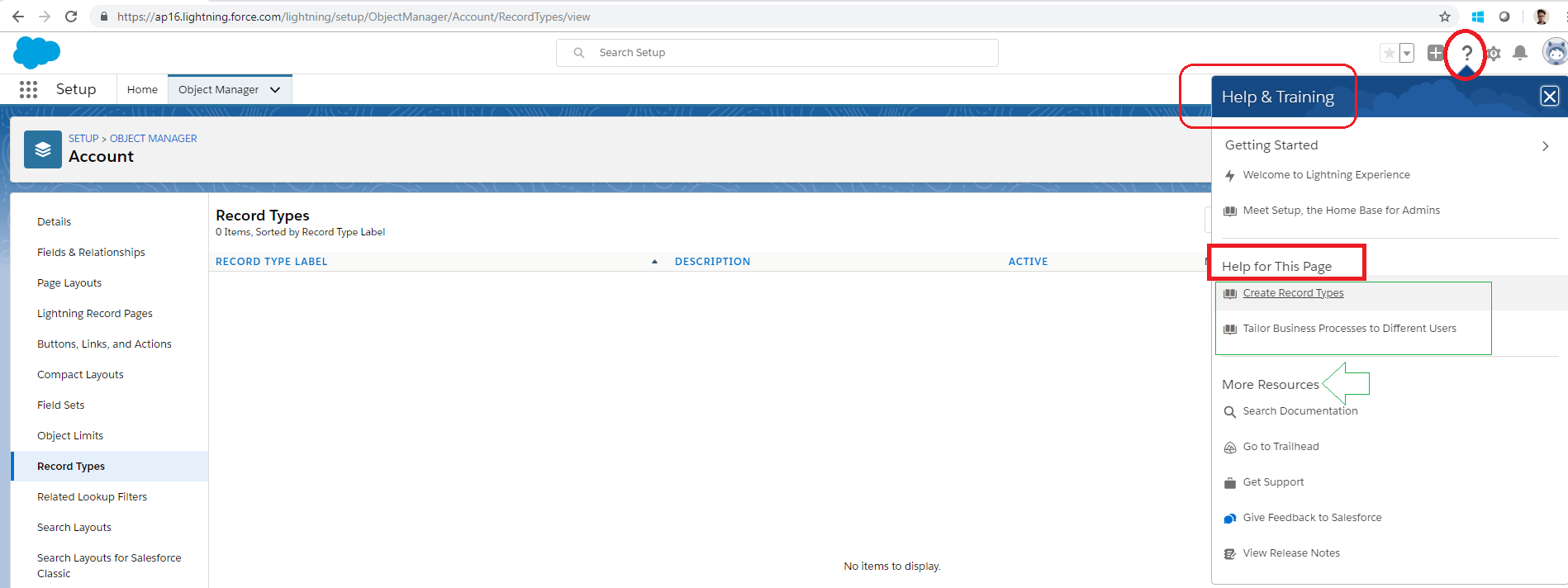
Note: If you are stuck, don’t worry. You can always take help from Salesforce. Follow the below path.
Click on the Question mark on top of the page (this will give you help for the current option you are in, like in the below image I am in record type and I want help on that. So when I will click on the question mark it will give help for record type). -> You will see the Help & Training section pop-up -> Go to Help for this page and select the option available as per your need.
 JPs Blog